Technical FAQ
Q1: Which JetPack versions are supported?
A: Our latest BSP (Board Support Package) is fully optimized for JetPack 6.2. We provide continuous maintenance and updates for upcoming JetPack releases. For the latest compatibility matrix or tailored BSP requests, please contact the Sintrones Technical Support Team.
Q2: How do I enter Recovery Mode?
A: Please follow these steps to place your IBOX into Recovery Mode:
1. Power Off: Ensure the IBOX is completely powered down.
2. Hold Recovery: Press and hold the physical Recovery button.
3. Apply Power: Connect the power cable and enable the ignition signal (or bridge IGN to DC+).
4. Release: Continue holding the Recovery button for 5+ seconds, then release.
5. Connect: Link the IBOX to your host PC via a USB Type-C cable.
Q3: How do I update the BSP?
A: We offer a comprehensive, step-by-step BSP Update SOP for the IBOX series. To ensure a secure setup, please download the latest guide directly from our Download Center or request access via our support portal.
Q4: How can I check system information and the JetPack version?
A: You can easily verify your current system setup and JetPack version by executing the following command in the terminal:
sudo apt-cache show nvidia-jetpack
Q5. Does the IBOX series support AI acceleration?
A: Yes. Jetson-based IBOX systems natively support the NVIDIA AI acceleration stack for seamless edge deployments:
• Supported Frameworks: NVIDIA CUDA, TensorRT, DeepStream, cuDNN
• Target Applications: High-performance AI Inference, Computer Vision & Video Analytics, Edge AI Intelligent Deployments
For inspiration and reference architectures, explore the NVIDIA AI Lab.
Q6. How can I monitor real-time system performance?
A: For Jetson-based platforms, we highly recommend using tegrastats or the open-source jtop utility. These tools allow you to monitor:
• Resource Utilization: CPU & GPU loads, Memory usage.
• System Health: Real-time temperatures and power consumption.
Q7. How do I enable CAN Bus functionality?
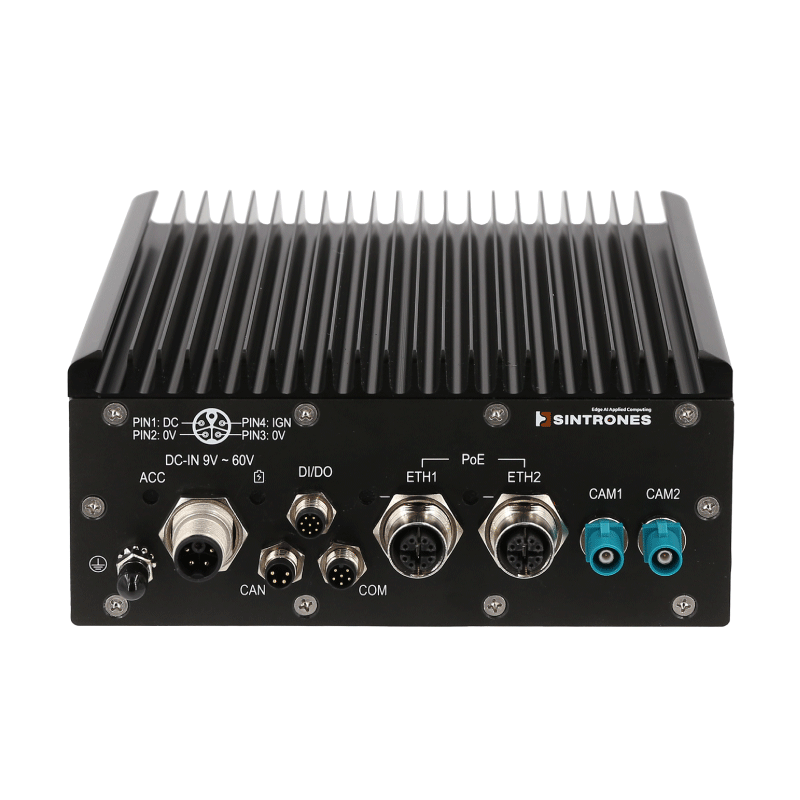
A: The IBOX series features robust onboard CAN Bus support. For Ubuntu/Linux environments, we provide a dedicated CAN Bus User Guide to streamline operations such as:
• Interface activation/deactivation & Baud rate configuration.
• Message transmission, reception, and hardware status monitoring.
Q8. How do I use Digital I/O (DIO)?
A: The IBOX series handles isolated Digital Input (DI) and Digital Output (DO) via an onboard MCU. Users can programmatically control DIO through Linux I2C commands using our MCU Register Guide.
Beyond DIO, the guide provides register mappings for:
• Ignition (IGN) & UPS: Status monitoring and power-ignition threshold delays.
• Peripherals: CAN Bus and COM Port hardware-level configurations.
Q9. What is Jetson Power Mode and how do I configure it?
A: NVIDIA Jetson modules support predefined power profiles to balance compute performance and energy efficiency.
Thermal Optimization Notice: Sintrones platforms are fully validated under standard and high-power modes. Operating continuously under unconstrained MAXN or MAXN SUPER modes under heavy workloads is not recommended unless supplemental thermal management is implemented, as it may lower the maximum operating temperature threshold.
• Check current mode:
sudo nvpmodel -q
• Configure power mode:
# 1. List available modes
sudo nvpmodel -p
# 2. Set specific mode (e.g., Mode 2)
sudo nvpmodel -m 2
Q10. Which GMSL Cameras are supported?
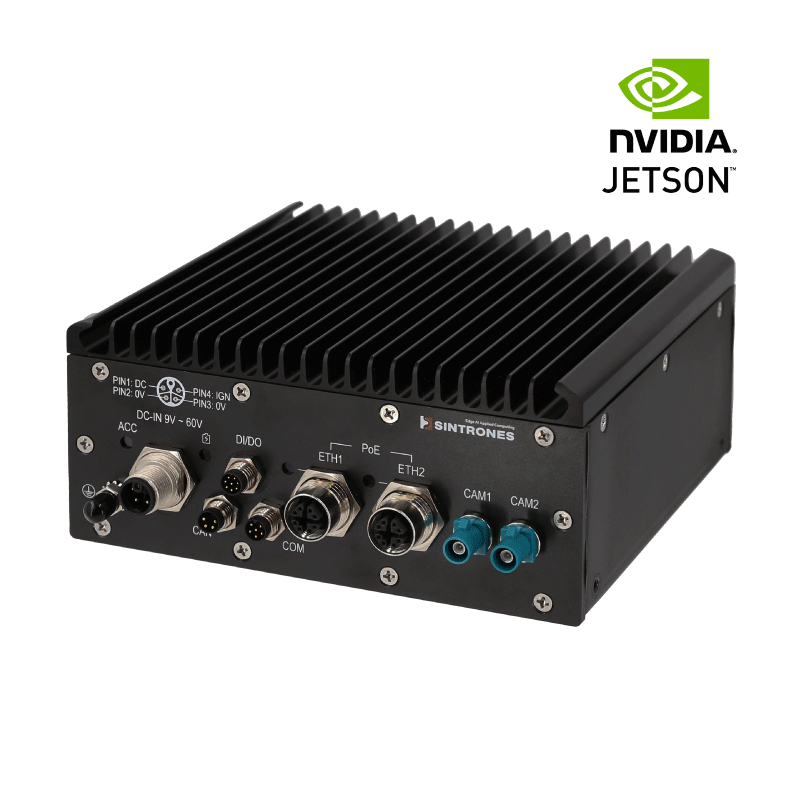
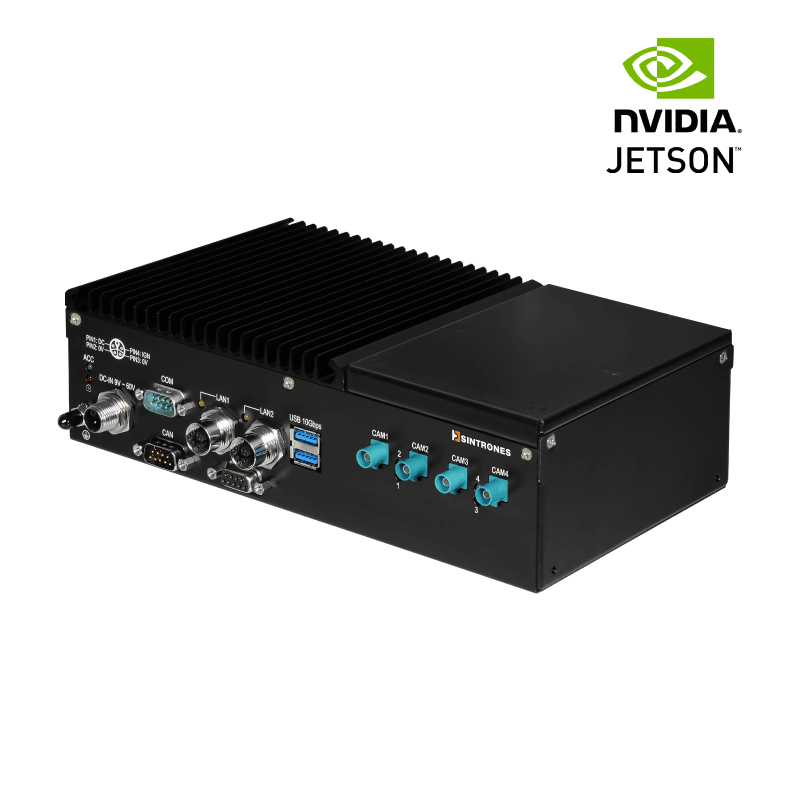
A: The IBOX series integrates multi-channel GMSL2 camera support. Verified camera vendors include:
• oToBrite: oToCAM264ISP (2MP), oToCAM260ISP (5.36MP), oToCAM223 (2.95MP) Series.
• e-con Systems: STURDeCAM25 (2MP), STURDeCAM31 (3MP), STURDeCAM81 (8MP).
• StereoLabs: ZED X Stereo, ZED X One (4K / S / GS).
Technical Note: Maximum camera throughput depends on your specific IBOX hardware layout, deserializer configuration, and BSP release. Certain StereoLabs models may require a customized BSP framework. Please contact us for the latest Camera Support List.