

Welcome to SINTRONES FAQ section. Seek answers to the frequently asked questions here.
If you are unable to locate the information you require, please complete our FAQs form, and we shall expeditiously attend to your inquiries.
Secure Boot and TPM (Trusted Platform Module) are different security technologies.
Secure Boot
- Protects the boot process.
- Verifies the authenticity of bootloaders and operating systems.
TPM
- Provides hardware-based security functions.
- Stores encryption keys and certificates securely.
- Supports features such as BitLocker and device attestation.
Many SINTRONES platforms support both Secure Boot and TPM 2.0 for enhanced system security.
Yes.
Most SINTRONES platforms support UEFI Secure Boot, which helps protect the system against unauthorized operating systems, bootloaders, and malware during the boot process.
Secure Boot can be enabled or disabled through the BIOS Setup Utility.
Note:
- Some third-party operating systems, drivers, or custom bootloaders may not be compatible with Secure Boot.
- Disabling Secure Boot may be required when installing certain Linux distributions or customized operating system images.
SINTRONES provides Vehicle Control Tools sample code to help developers quickly integrate vehicle-related functions into their applications.
The sample code demonstrates how to access and control platform features such as:
- Ignition (IGN) status monitoring
- UPS status monitoring
- Digital I/O (DIO) control
- CAN Bus communication
- MCU register access
- Other platform-specific vehicle control functions
Users can use the provided sample code as a reference and integrate the corresponding functions into their own software applications based on project requirements.
For detailed implementation examples and source code, please contact the SINTRONES technical support team.
The SINTRONES UPS function is integrated into the system and does not require an external UPS device.
When both the main DC input power (DC+) and the ignition signal (IGN) are removed, the system automatically enters UPS Mode and starts the configured UPS Delay Off Timer.
During the UPS Delay Off period:
- The system continues operating using the internal UPS battery.
- Applications can continue running normally.
- The operating system can perform data saving and graceful shutdown procedures.
- The remaining backup time depends on system power consumption, battery condition, and UPS configuration.
When the configured UPS Delay Off Timer expires, the system will automatically perform a safe shutdown and power off to prevent unexpected data loss.
Note:
- UPS Delay Off time can be configured through the BIOS, MCU utility, or platform-specific settings depending on the product model.
- The actual backup duration may vary based on system loading and battery capacity.
- It is recommended to configure a sufficient delay time to allow the operating system to complete its shutdown process safely.
Typical MCU functions include:
- Ignition Control
- UPS Delay OFF Timer
- DIO Control
- Power ON/OFF Delay Timer
- Hardware OFF Delay Time
For further information, please contact the SINTRONES Technical Support Team.
The MCU firmware version can be queried through:
- MCU Utility
- Linux I2C commands
- BIOS Mainpage
depending on the platform model.
Intel 13th Gen and newer platforms no longer support Legacy Boot mode.
UEFI Boot mode is required.
Most hardware devices are supported through the standard Linux kernel.
For platform-specific functions such as:
- CAN Bus
- DIO (Digital Input / Output)
- Ignition Control
- Watchdog
- LTE Modules
Please refer to the Product User Manual for the I²C register map and control methods. The manual provides detailed information on how to access and control these functions through the MCU via the Linux I²C interface.
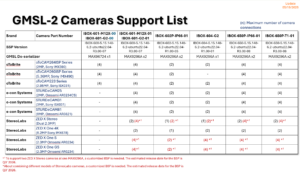
The IBOX series supports a variety of GMSL2 cameras from multiple camera vendors. Supported camera models may vary depending on the platform model and BSP version.
Currently validated camera vendors include:
oToBrite
- oToCAM264ISP Series (2MP, Sony IMX390)
- oToCAM260ISP Series (5.36MP, Sony IMX490)
- oToCAM223 Series (2.95MP, Sony ISX031)
e-con Systems
- STURDeCAM25 (2MP, Onsemi AR0234CS)
- STURDeCAM31 (3MP, Sony ISX031)
- STURDeCAM81 (8MP, Onsemi AR0821)
StereoLabs
- ZED X Stereo
- ZED X One 4K
- ZED X One S
- ZED X One GS
Notes
- The maximum number of supported cameras depends on the platform model, GMSL de-serializer configuration, and BSP version.
- Some StereoLabs camera configurations may require a customized BSP.
- Camera support may vary between BSP releases. Please refer to the latest Camera Support List or contact the Sintrones technical support team for detailed compatibility information.

The IBOX series supports Digital Input (DI) and Digital Output (DO) functions through the onboard MCU controller.
For Ubuntu/Linux environments, Sintrones provides an MCU Register Guide, allowing users to directly access and control DIO functions through Linux I2C commands or custom applications.
Typical DIO operations include:
- Reading Digital Input (DI) status
- Controlling Digital Output (DO) states
- Monitoring hardware signals
- Integrating DIO control into custom applications
In addition to DIO control, the MCU Register Guide also provides register definitions for:
- Ignition (IGN) status monitoring and configuration
- UPS status monitoring
- CAN Bus configuration
- COM Port configuration
- Other platform-specific hardware controls
For detailed register definitions and programming examples, please refer to the MCU Register Guide or contact the Sintrones technical support team.